
If you need a QuickRecorder alternative because the menu bar controls stopped working on macOS 27, TinyRecorder is the closest one: it is a community fork of QuickRecorder that keeps the same app and workflow, fixes the macOS 27 bug, and is still updated. It is free and open source under the same AGPL-3.0 license. Your QuickRecorder settings don’t carry over, so plan five minutes to set it up again.
What happened to QuickRecorder
QuickRecorder by lihaoyun6 is a lightweight, open-source screen recorder for macOS built on ScreenCaptureKit. It is a well-designed app with a large user base, and almost everything you like about TinyRecorder started there: the toolbar, window and area recording, system audio without a virtual driver, the camera overlay, iPhone recording, the trimmer and the .qma audio format.
The project has been quiet since mid-2025. The last commit and the last release (1.6.9) are from June 11, 2025. The repository is not archived, but it has well over a hundred open issues, including reports from macOS 27 users. Maintaining a free app is a lot of work, and nobody owes anyone updates. TinyRecorder exists so that people who depend on the app can keep using it on new versions of macOS.
TinyRecorder is not an official continuation and is not endorsed by lihaoyun6. The original copyright notice and credit stay in the app and in the source repository.
QuickRecorder not working on macOS 27: the menu bar problem
The most common QuickRecorder problem on macOS 27 is that the menu bar controls don’t respond during a recording. You click stop, pause or the camera button, and nothing happens. The recording keeps running. This is reported upstream as issues #295 and #296, both still open.
The cause is a change in macOS 27. When you click a menu bar item, macOS 27 reports the click as if it landed in the center of the item, no matter where the pointer actually was. The menu bar controller has several buttons side by side, so every click hits the one in the middle (the timer), and stop and pause never fire.
TinyRecorder fixes this by rebuilding each click with the real pointer position before the buttons see it. Thanks to micnguyen for the root-cause analysis in issue #295. A later update briefly broke the fix again, and that regression was corrected too. TinyRecorder also shows the menu bar icon by default, so new users always have a visible stop button.
If you want to stay on QuickRecorder for now, assign a keyboard shortcut for stopping a recording in its settings. Shortcuts don’t go through the menu bar, so you can still end a recording that way.
What changed in the fork
Every item below is in the TinyRecorder commit history and in the current version, 1.8.13. Many of them close long-standing QuickRecorder issues. Internal changes such as build and CI work are left out.
macOS 27 compatibility
- Menu bar stop, pause and camera buttons work again.
- The Settings window lays out correctly: the sidebar rows were greyed out and couldn’t be selected, and the General page was pushed out of the window.
Reliability
- Crash-safe recording. Videos are written in 10-second fragments. If the app crashes, is force-quit or the Mac loses power, everything up to the last fragment stays playable instead of the whole file being lost.
- No more lost audio in some players after long still periods (frame reordering is turned off).
- TinyRecorder tells you when macOS stops the recording, and why.
- Microphone audio stays in sync, including after pause and resume, and when you switch input devices mid-recording.
- Audio interfaces with more than two inputs are mixed down to stereo.
- HDR recordings carry correct color tags, and HDR is turned off on Macs without a hardware HEVC encoder.
- Application recording also captures audio from helper processes, for example a web app playing sound in a browser.
- Full-screen apps in other Spaces appear in the window list.
- iPhone and iPad recording is more robust: it asks for camera access before starting, refreshes the device list when you plug in a device, and falls back to H.264 instead of crashing.
- Quitting right after a recording no longer leaves a temporary file with a doubled extension behind.
New features
- AppleScript commands to stop, pause, resume and discard a recording, in addition to starting one. See automation.
- Discard recording: a shortcut (and AppleScript command) that stops the recording and moves the file to the Trash.
- Copy the recording to the clipboard when it is saved, so you can paste it into a chat or email.
- Pressing a recording shortcut again stops the recording.
- A circle shape for the camera overlay, and an option to open a chosen camera automatically when recording starts.
- X and Y position fields for the screen area.
- An option to never show the small on-screen controller.
- The main toolbar reopens where you last dragged it.
- Japanese, German and Spanish, plus a language picker in Settings.
Setup and updates
- First-launch guide that walks you through the Screen Recording permission (with one automatic restart), the microphone and a default format. It recommends H.265 or H.264 based on your Mac’s hardware. You can replay it from Settings.
- Permission repair. If the permission toggle is on but recording still fails, Settings › General › Screen Recording Permission › Repair… resets it and relaunches the app.
- Updates keep your permissions. Since version 1.7.15 TinyRecorder is signed with a fixed certificate, so updating with Check for Updates… doesn’t make you grant Screen Recording again.
- A one-line Terminal installer and a Homebrew cask.

The toolbar and the pickers will look familiar. The recording modes are the same as in QuickRecorder.
QuickRecorder vs TinyRecorder at a glance
| QuickRecorder 1.6.9 | TinyRecorder 1.8.13 | |
|---|---|---|
| Maintained | Last release June 2025 | Yes, regular releases |
| macOS 27 menu bar controls | Don’t respond (issue #295 open) | Work |
| Menu bar icon | Off by default | On by default |
| Crash-safe recording | No | Yes, 10-second fragments |
| AppleScript stop / pause / discard | No (record and configure only) | Yes |
| Permission guide and repair | No | Yes |
| Price | Free | Free |
| License | AGPL-3.0 | AGPL-3.0 |
| Minimum macOS | 12.3 | 12.3 |
One difference to know about: TinyRecorder sends anonymous usage statistics (app version, recording type, format and length; never recordings, file names or window titles). You can turn this off in Settings › General. See the privacy page.
How to switch from QuickRecorder to TinyRecorder
- Quit QuickRecorder. If a recording is stuck because the stop button doesn’t respond, use its stop shortcut or quit the app from the Dock.
- Download TinyRecorder. The one-line installer and Homebrew (
brew install --cask 33to9/tap/tinyrecorder) avoid the Gatekeeper warning. If you use the DMG, macOS blocks it once on first open: on macOS 15 and later, go to System Settings › Privacy & Security and click Open Anyway; on macOS 12 to 14, right-click the app and choose Open. - Open TinyRecorder and follow the setup guide. TinyRecorder is a separate app to macOS, so you need to grant Screen Recording again, and the microphone and camera if you use them.
- Set your preferences again. Settings are not migrated from QuickRecorder: output folder, format and encoder, shortcuts, Blocklist and camera overlay all start from the defaults.
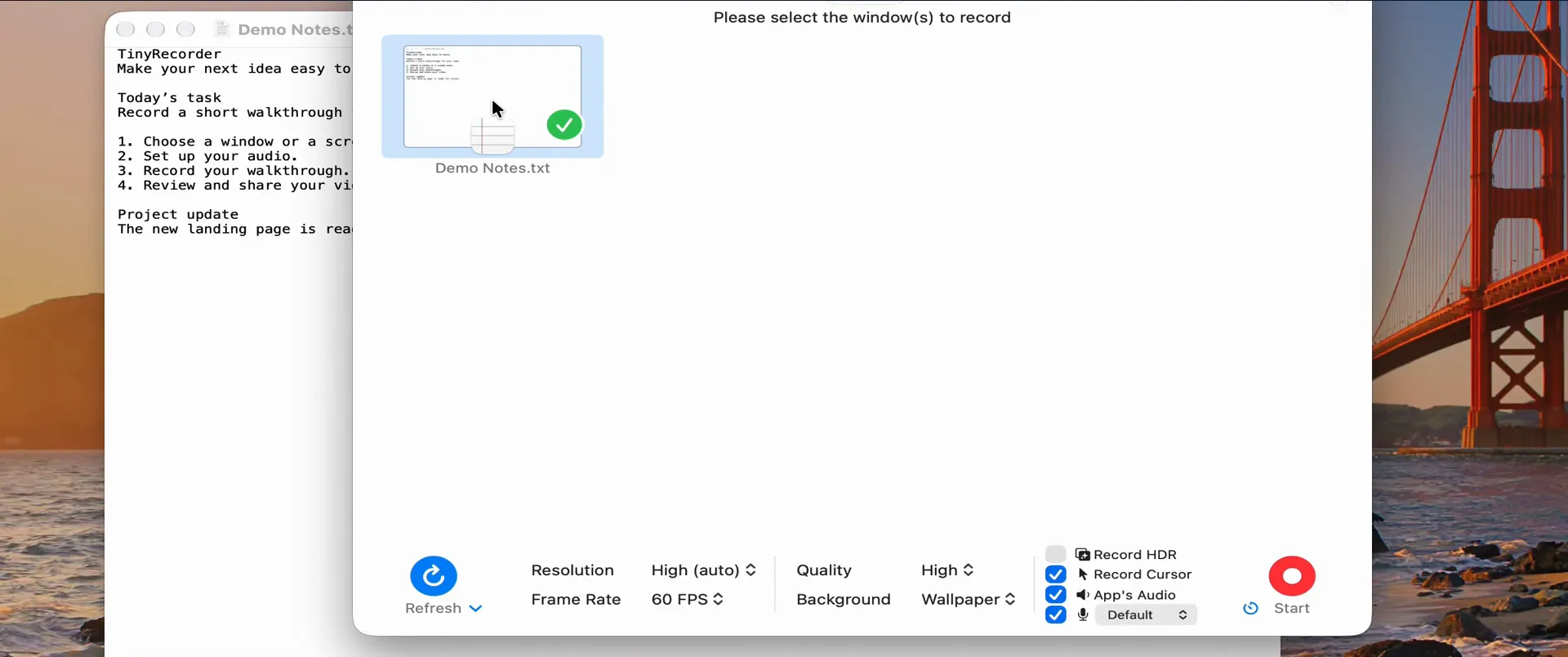
- Make a short test recording to check sound and format.
- Once you are happy, you can delete QuickRecorder: drag it from Applications to the Trash. You can also remove its entry from System Settings › Privacy & Security › Screen & System Audio Recording. Your existing recordings are ordinary files and stay where they are.
If you used QuickRecorder’s AppleScript commands, check your scripts against the automation page. Scripts address the app by name, so change “QuickRecorder” to “TinyRecorder”.
If something doesn’t work
TinyRecorder keeps asking for Screen Recording permission. Make sure the toggle for TinyRecorder (not QuickRecorder) is on in System Settings › Privacy & Security › Screen & System Audio Recording. If it is on and recording still fails, use Settings › General › Screen Recording Permission › Repair….
No system sound in the recording. Check App’s Audio in the picker before you click Start. System audio needs macOS 13 or later. The guide on recording your screen with internal audio covers the details.
The menu bar icon is missing. It may be hidden behind the notch or by a menu bar manager. In that case a small controller with the timer appears at the top of the screen, and the stop and pause shortcuts always work.
Next steps
- Download TinyRecorder: free, no account, no watermark.
- Coming from the built-in tools instead? Read QuickTime vs TinyRecorder.
- Browse the source and report issues on GitHub, or read more on the open source page.